> ## Documentation Index
> Fetch the complete documentation index at: https://docsy3.mile.app/llms.txt
> Use this file to discover all available pages before exploring further.

# Creating Task Schedule

<Note>
  Required permission:

  * View schedule
  * Create schedule
</Note>

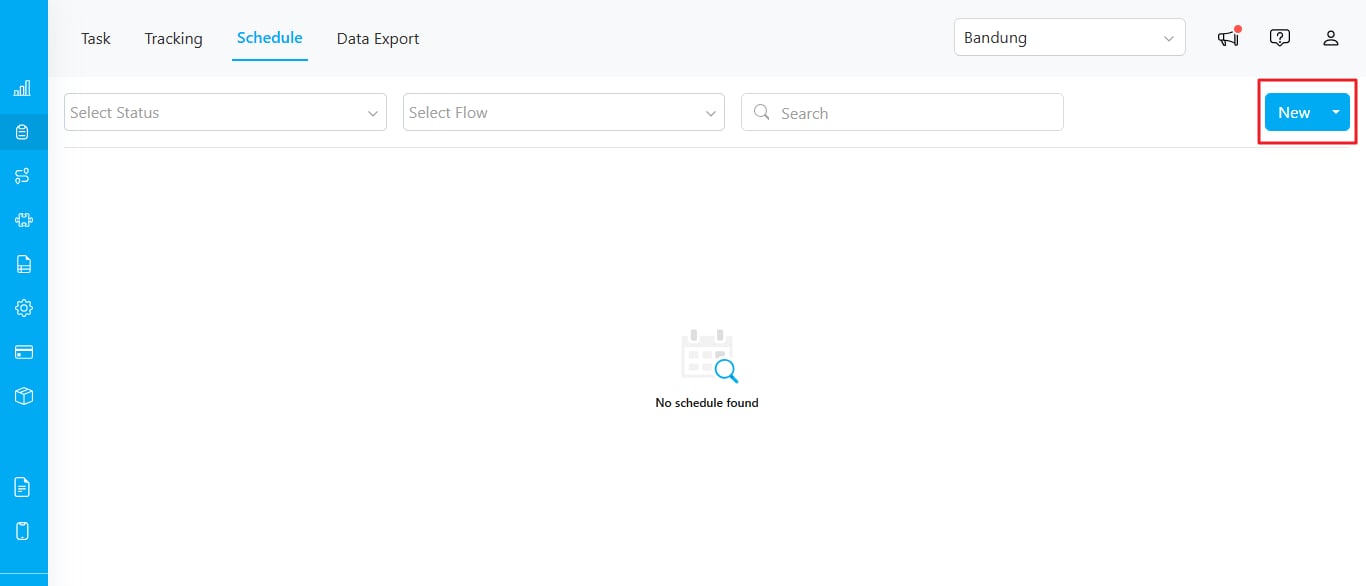
There are two ways to create a task schedule. Click the **"New"** button to create a single schedule or select **"Bulk"** to create multiple schedules at once.

<div align="center">
  <img src="https://mintcdn.com/mile-app/M1z_0MOHQdp8jD9l/images/task/schedule/creating-task-schedule-01.png?fit=max&auto=format&n=M1z_0MOHQdp8jD9l&q=85&s=4ed206ca8a372f9b7cb8639e28953c4d" alt="image" width="600" data-path="images/task/schedule/creating-task-schedule-01.png" />
</div>

## Single Schedule

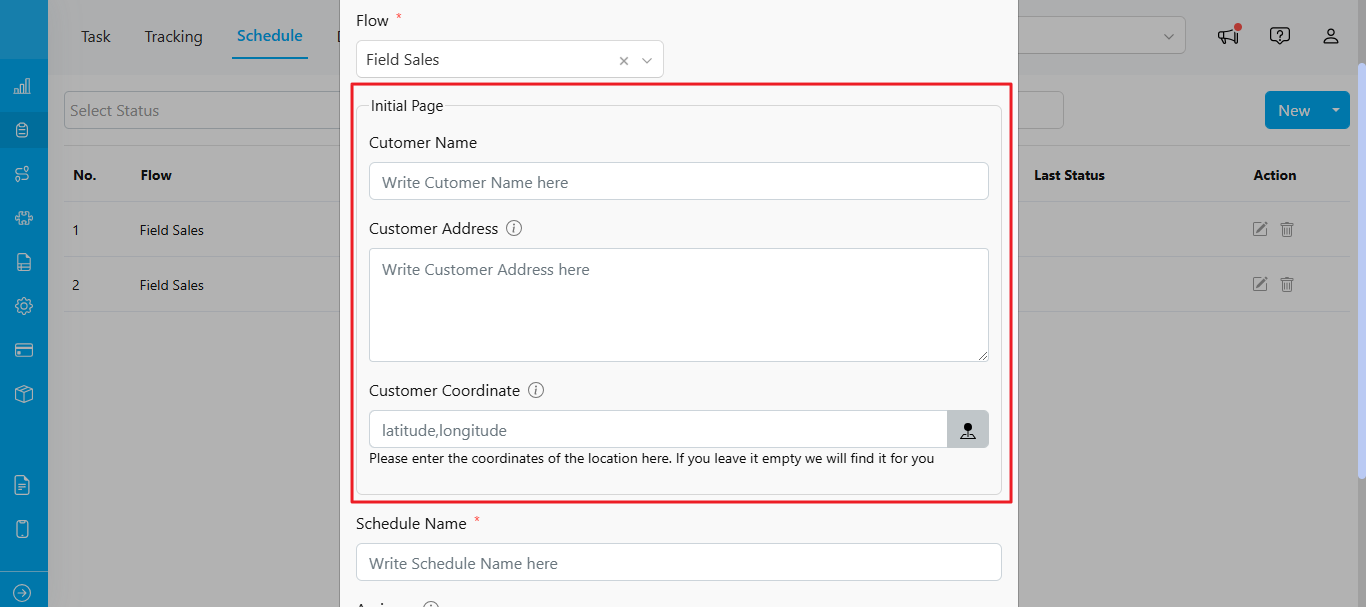
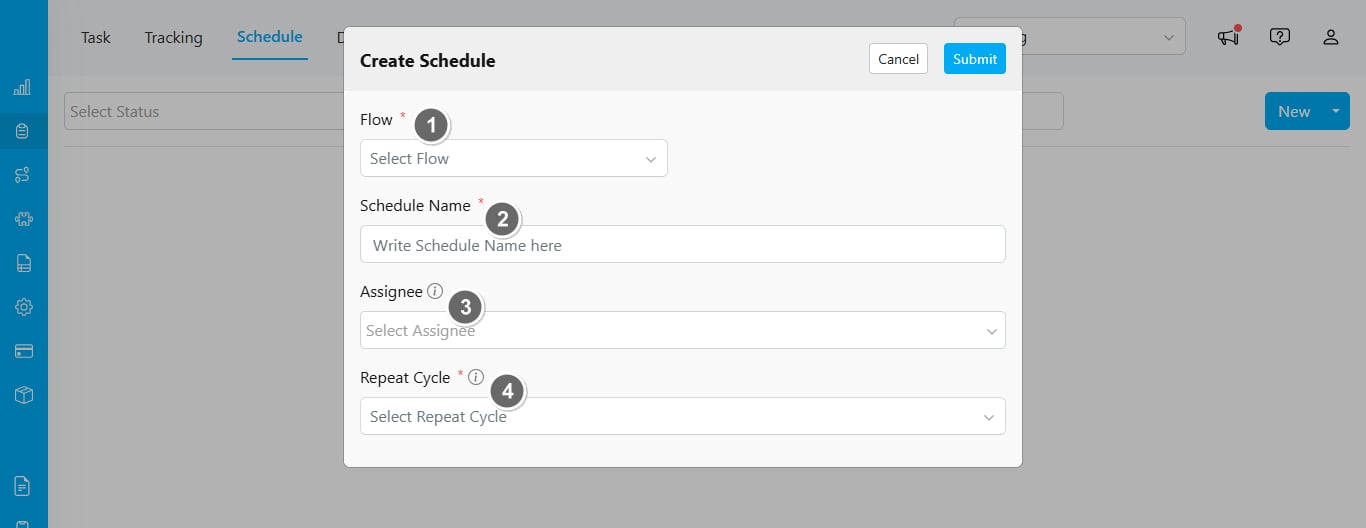
When creating a new schedule, you must fill in the following information. Required fields are marked with an asterisk (\*).

<div align="center">
  <img src="https://mintcdn.com/mile-app/M1z_0MOHQdp8jD9l/images/task/schedule/creating-task-schedule-02.png?fit=max&auto=format&n=M1z_0MOHQdp8jD9l&q=85&s=a2c914e39cefd9a2a700d0e5abc4bacc" alt="image" width="600" data-path="images/task/schedule/creating-task-schedule-02.png" />
</div>

1. **Task Flow**: Select the task flow to use for this schedule (e.g., Pickup, Delivery). Once selected, additional form fields will appear based on the initial page of your flow settings.

<div align="center">
  <img src="https://mintcdn.com/mile-app/M1z_0MOHQdp8jD9l/images/task/schedule/creating-task-schedule-03.png?fit=max&auto=format&n=M1z_0MOHQdp8jD9l&q=85&s=55f422a9f60493c78a1ab75e83a49f98" alt="image" width="600" data-path="images/task/schedule/creating-task-schedule-03.png" />
</div>

2. **Schedule Name**: Enter a specific name to help differentiate this schedule from others you may create.
3. **Assignee**: Choose the assignee for the task schedule. The available assignees are based on the hub selected in the upper-right corner.
4. **Repeat Cycle**: Set the time and cycle for when the schedule will be active. For more details on each cycle option, refer to this [page](/pages/task/schedule/repeat-cycle/repeat-daily).

## Bulk Schedule

If you need to create multiple schedules at once, select **"Bulk"**.

<div align="center">
  <img src="https://mintcdn.com/mile-app/M1z_0MOHQdp8jD9l/images/task/schedule/creating-task-schedule-04.png?fit=max&auto=format&n=M1z_0MOHQdp8jD9l&q=85&s=1c2634e33a6f2f8e1efe3c9d89a44e74" alt="image" width="600" data-path="images/task/schedule/creating-task-schedule-04.png" />
</div>

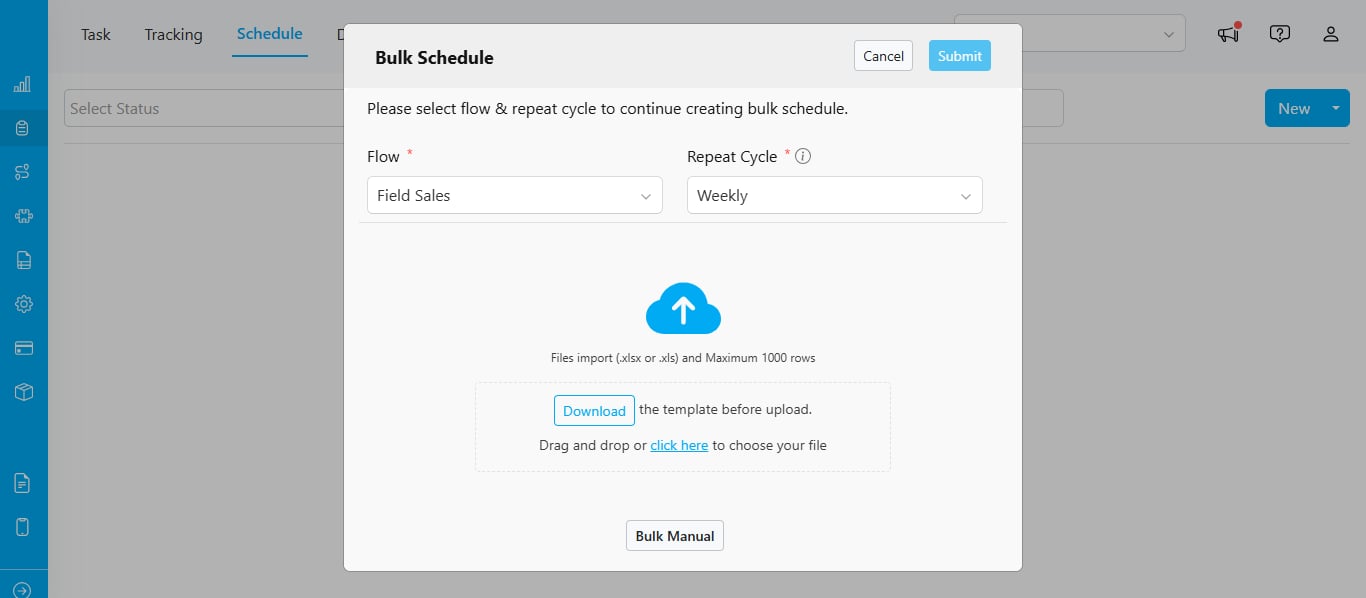
1. Select Task Flow.
2. Choose Repeat Cycle.
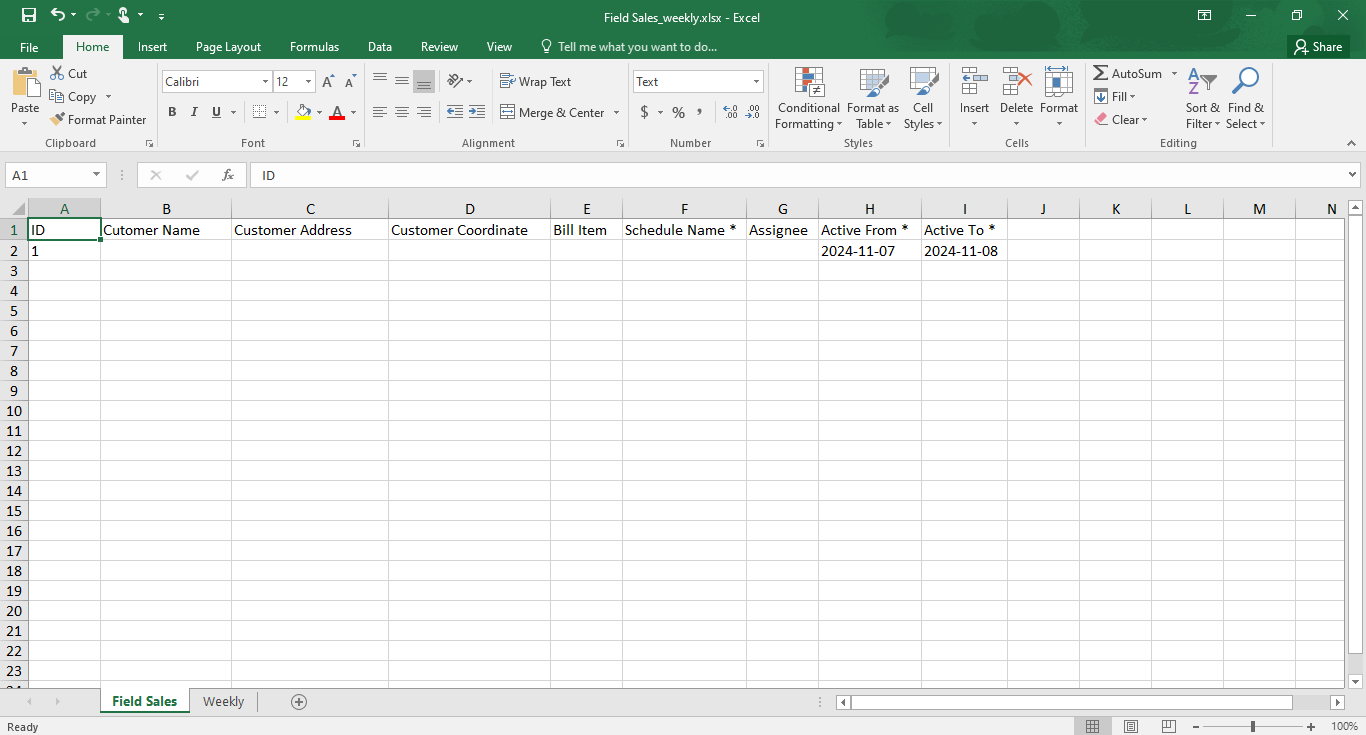
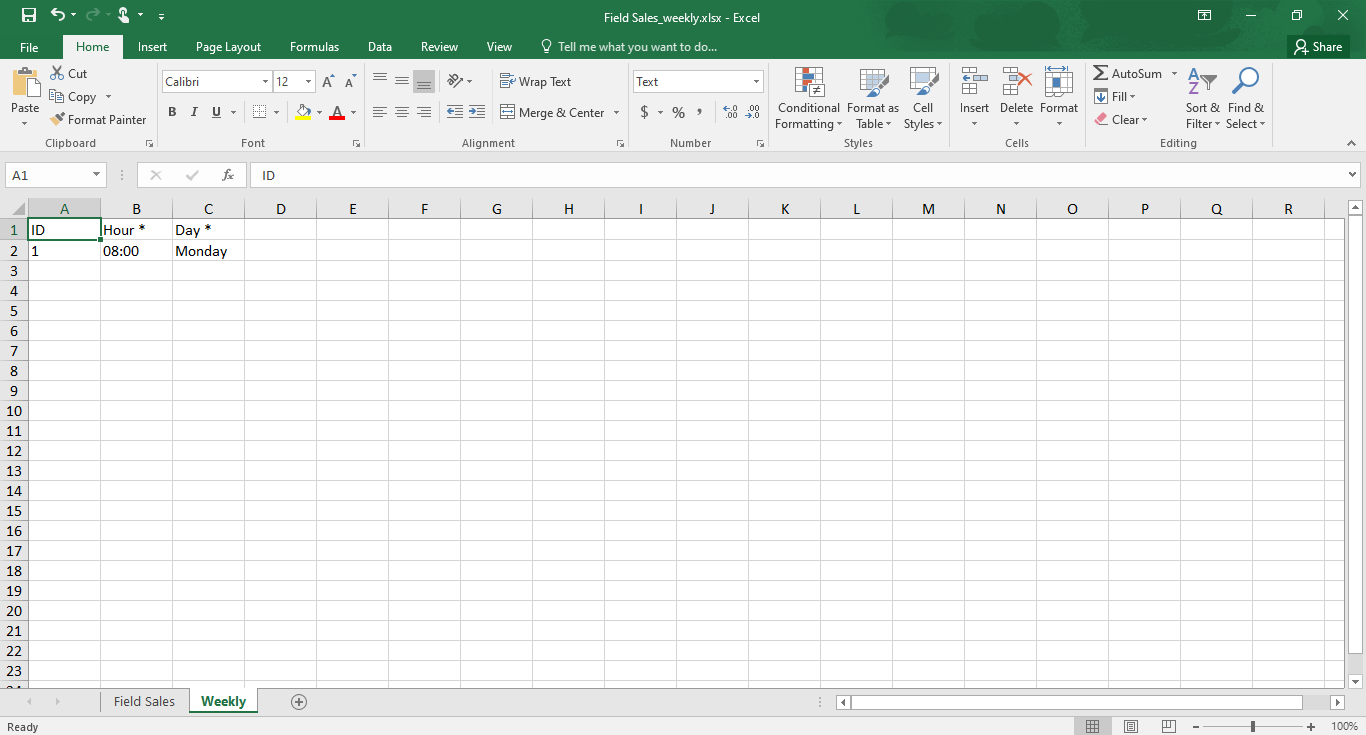
3. **Download the Template** before uploading. The Excel template includes two sheets:
   * **Sheet 1** for schedule data, including fields such as "Name," "Address," and "Coordinate."
   * **Sheet 2** for setting up the time. Required fields are marked with an asterisk (\*).

Example of the **"Field Sales"** flow in Sheet 1:

<div align="center">
  <img src="https://mintcdn.com/mile-app/M1z_0MOHQdp8jD9l/images/task/schedule/creating-task-schedule-05.png?fit=max&auto=format&n=M1z_0MOHQdp8jD9l&q=85&s=7a067c790fdf77de505c47ec1c04da4c" alt="image" width="600" data-path="images/task/schedule/creating-task-schedule-05.png" />
</div>

Example of the **"Weekly"** cycle sheet:

<div align="center">
  <img src="https://mintcdn.com/mile-app/M1z_0MOHQdp8jD9l/images/task/schedule/creating-task-schedule-06.png?fit=max&auto=format&n=M1z_0MOHQdp8jD9l&q=85&s=eb4e30aa9385a721f79725c538f0ca6a" alt="image" width="600" data-path="images/task/schedule/creating-task-schedule-06.png" />
</div>

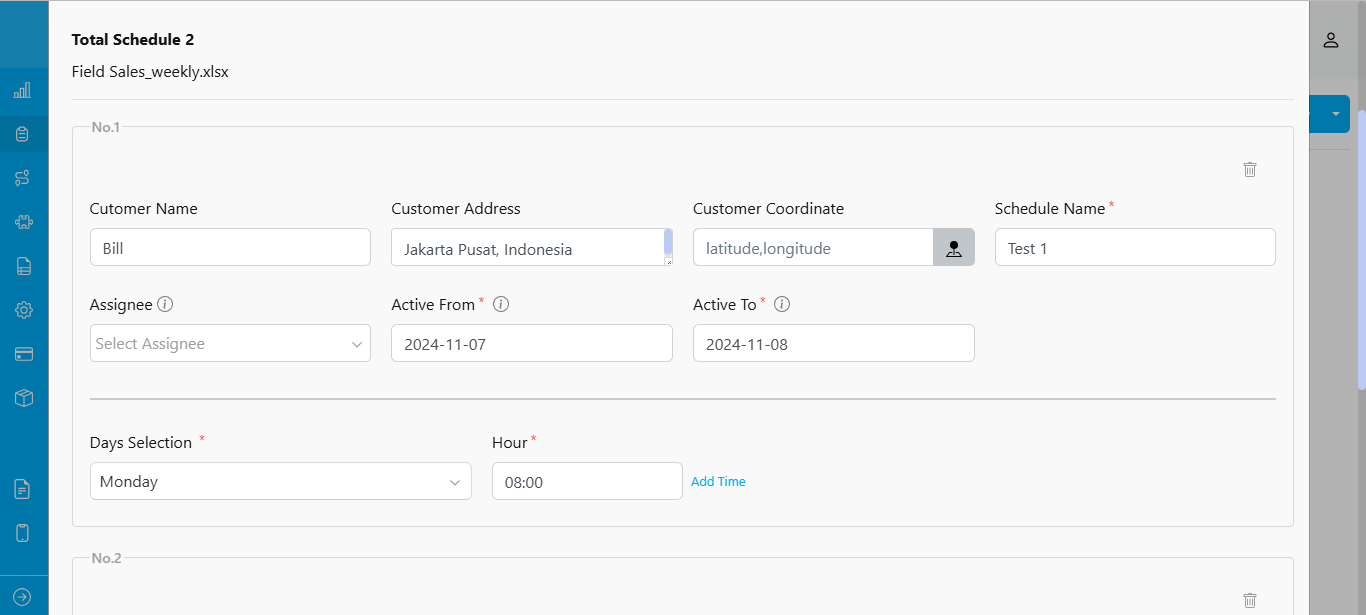
Before submitting, you can review the uploaded schedules to check for any missing or invalid data.

<div align="center">
  <img src="https://mintcdn.com/mile-app/M1z_0MOHQdp8jD9l/images/task/schedule/creating-task-schedule-07.png?fit=max&auto=format&n=M1z_0MOHQdp8jD9l&q=85&s=b758ce2475185b17ae14c78934edc021" alt="image" width="600" data-path="images/task/schedule/creating-task-schedule-07.png" />
</div>

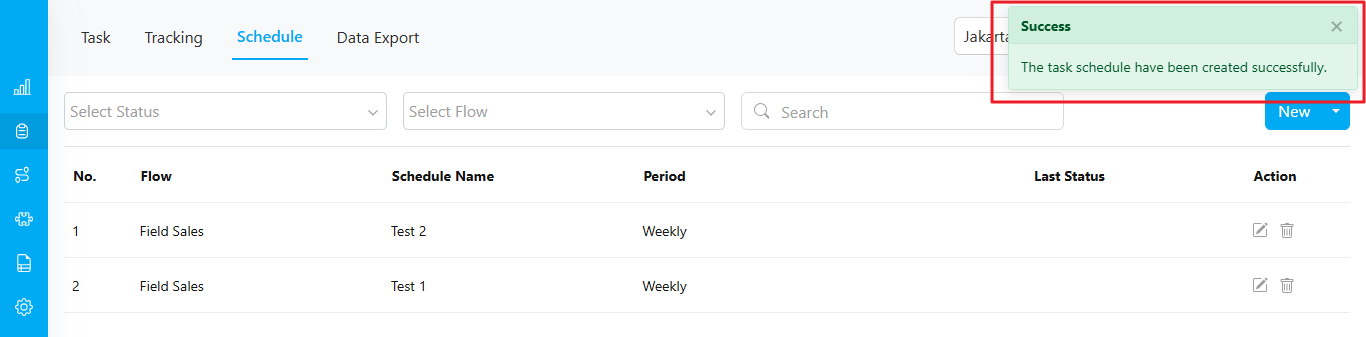
A success message will confirm once your task schedule has been created: *"The task schedule has been created successfully."*
<div align="center">
  <img src="https://mintcdn.com/mile-app/M1z_0MOHQdp8jD9l/images/task/schedule/creating-task-schedule-08.png?fit=max&auto=format&n=M1z_0MOHQdp8jD9l&q=85&s=ab1254d2836b927eb2bb81d839fc840a" alt="image" width="600" data-path="images/task/schedule/creating-task-schedule-08.png" />
</div>