> ## Documentation Index
> Fetch the complete documentation index at: https://docsy3.mile.app/llms.txt
> Use this file to discover all available pages before exploring further.
# Verifying Account for Newly Invited User
After receiving the invitation email, the newly invited user should follow these steps to verify their account:
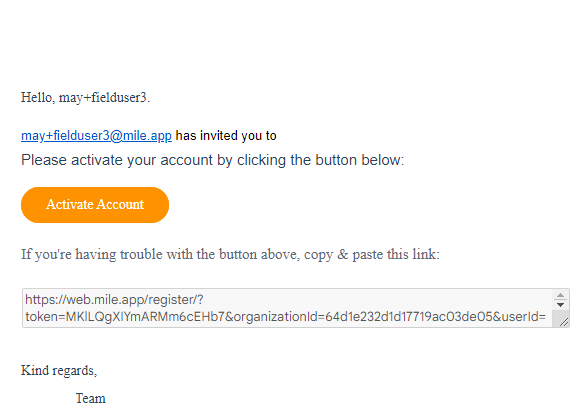
1. Check inbox email: Open the email inbox associated with the provided email address.
2. Find the activation email: Look for an email from your system containing the activation link. It should have a subject related to account verification.
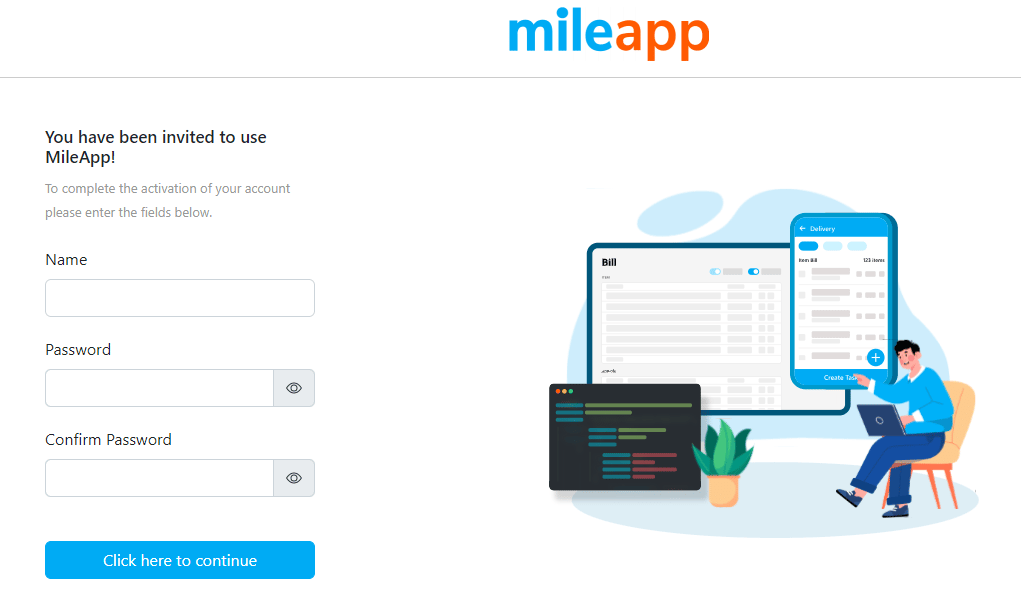
3. Click on the activation link: Click on the activation link within the email. This will redirect the user to a verification page.
4. Set a name and password: On the verification page, the user will be prompted to set a name and password for their account. They should create a secure password and confirm it.
5. Click "Click here to continue" to complete the verification process.
Once the user successfully verifies their account, they will gain access to the platform, and the "Resend Verification" button will no longer be available for that user.
This documentation is built and hosted on [Mintlify](https://mintlify.com), a developer documentation platform.